How to Add Products to Shopify: 3 Ways, Step by Step
TL;DR
There are three ways to add products to Shopify: one at a time by hand, in bulk with a CSV file, or straight from your supplier invoices. Which one fits depends on how many products you add each month. When a new order means dozens of styles across a full run of sizes and colors, Ohavah reads the invoice and builds the Shopify CSV for you, so you review and import instead of retype.
Adding a single product to Shopify is quick. The trouble starts when a shipment shows up with forty styles, each in five sizes and three colors, and every one of them has to become a product with the right variants, a SKU, and a retail price. The method that works fine for one product falls apart at forty.
So before you start typing, it's worth knowing all three ways to get products into Shopify and when each one is the right call.
Way 1: Add one product by hand
This is the method most people start with, and it's the right one when you're adding a handful of products and aren't in a hurry. Everything happens in the Shopify admin.
- Go to Products, then Add product. In your Shopify admin, open Products in the left menu and click Add product in the top right.
- Write the title and description. The title is what shoppers and search engines see first, so make it specific. The description is where the details go.
- Add your photos. Drag the product images into the media box, or click to upload them.
- Set the price, SKU, and inventory. Enter the retail price, your SKU, and how many you have in stock.
- Add variants for size and color. Under Variants, add an option like Size, then another for Color, and Shopify creates a row for each combination. A style in five sizes and three colors becomes fifteen variant rows, each with its own SKU, price, and stock count. For the full steps, see how to create product variants in Shopify.
- Choose the status and save. Set the product to Active to publish it or Draft to keep working on it, then save.
For a few products, this is the simplest way to go. It gets slow once an order has dozens of styles and a full size run, because that's hundreds of variant rows typed one field at a time, and you do it again with every shipment.
Way 2: Add many products with a CSV file
Once you're adding more than a few products at once, filling them in one by one stops making sense. Shopify can import a spreadsheet, so you fill in one file and upload the whole batch together.
- Start from Shopify's template. In Products > Import, use Download sample CSV so your column headers match what Shopify expects.
- Fill in one row per variant. Each size-and-color combination is its own row, sharing a URL handle, with the product-level details on the first row only.
- Upload the file. Go back to Products > Import, upload your CSV, review the preview Shopify shows you, and confirm.
A CSV is far faster than the admin for a big catalog, but you still type every row yourself, and small mistakes break the import in ways the error messages don't always explain. A mismatched handle splits one product into several; a dollar sign in the price column throws an error. Our Shopify CSV format guide walks through every column and the row rules that trip people up. Once your products are in, bulk editing in Shopify lets you adjust prices or tags across many at once.
Way 3: Add products straight from your supplier invoice
If your products come from supplier invoices or purchase orders, there's a way to skip the typing. The invoice already lists what you ordered, so instead of reading it and rebuilding it in a spreadsheet, you hand the PDF to a tool that does the reading for you.
Here's the flow with Ohavah:
- Upload the invoice or purchase order as a PDF.
- Ohavah reads it and creates the products, expanding each style into one row per size and color, with SKUs, your marked-up retail price, and image links filled in.
- Review, download, and import. Check the products, download the Shopify-ready CSV, and import it the same way as Way 2.
The part that eats an evening with the other two methods, fanning a single invoice line out into fifteen variant rows, applying your markup, and building consistent SKUs, is the part Ohavah handles for you. For the full walkthrough, see turning supplier invoices into Shopify products. It holds up best when new orders arrive from many brands every month.
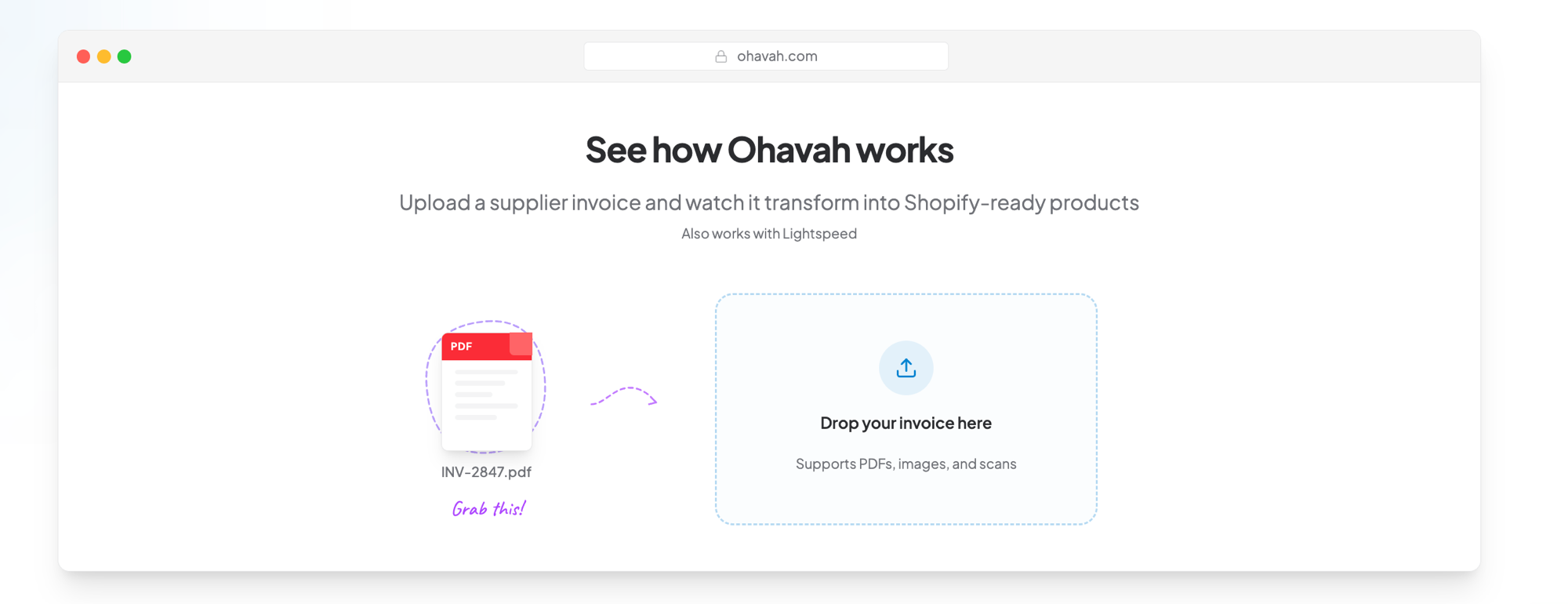
Add products straight from your supplier invoice
Skip the typing and skip the spreadsheet. Upload your PDF and Ohavah builds the Shopify CSV with every variant, SKU, and price already filled in.
Can I just ask an AI to make the CSV?
You can, and most AI tools will hand you something that looks like a Shopify CSV. The problem is everything you have to check afterward. A general tool reads the invoice as text and guesses at the structure, so it mixes up which sizes belong to which color, drops a variant, or invents a SKU that doesn't match your format. You review every row anyway, which is most of the work you were trying to avoid.
Then there's the format itself. Shopify is particular about column names, handle matching, and how prices are written, and a general tool doesn't know your markup or your SKU convention. You fix the file so Shopify accepts it, then repeat the whole thing for the next invoice.
OCR runs into the same wall. OCR reads the text off a scanned invoice accurately, but a catalog needs more than text: every size and color as its own row, wholesale turned into retail, clean SKUs, and Shopify's exact columns in order. Reading the page is the easy part; rebuilding it into a working import is where the hours go. A tool built for this already knows the Shopify format and keeps the variants, SKUs, and prices lined up, so there's nothing to untangle afterward.
Which way is right for you?
| Your situation | Best method |
|---|---|
| A few products a month | Add them by hand in the Shopify admin |
| Many products, and you're comfortable in spreadsheets | Fill in a CSV and import |
| Many products from supplier invoices | Upload the invoice to Ohavah |
Most boutiques end up using more than one. A one-off addition goes in by hand, while a new season's order from a dozen brands goes through the invoice.
FAQ
How do I add a product on Shopify? In your Shopify admin, go to Products and click Add product. Fill in the title, description, and photos, set the price, SKU, and inventory, add any size or color variants, then set the status to Active and save.
How do I add many products to Shopify at once? Use a CSV import. Download Shopify's sample template under Products > Import, fill in one row per variant, and upload the file. If your products come from a supplier invoice, Ohavah can build that CSV for you so you don't fill it in by hand.
How do I add sizes and colors to a product? Add them as variants. On the product page, add an option such as Size and another for Color, and Shopify creates a row for each combination so you can set the price, SKU, and stock per variant. See how to create product variants in Shopify for the full steps.
Can I add products to Shopify from a PDF invoice? Yes. Upload the invoice PDF to Ohavah and it reads the line items, expands every size and color into variant rows, applies your pricing, and builds a Shopify-ready CSV you review and import.
If a new shipment still means an evening of typing, hand that part off. Upload your next supplier invoice to Ohavah and get back a Shopify CSV with the variants, SKUs, and prices already filled in.
Related next steps
 LacyWillowmere BoutiqueCalled it “an absolute game changer” for launching her new website.