How to Bulk Edit Products in Shopify
TL;DR
Shopify gives you two main ways to bulk edit products: the built-in bulk editor for quick inline changes, and CSV export and re-import for large or structural updates. The sections below cover the things people edit most - prices, variants, tags, inventory, and collections - in order. If you need to add entirely new products from supplier invoices, Ohavah builds the CSV for you, so you skip hours of manual product entry.
Editing products one at a time works fine when you have a dozen listings. But when you need to update prices across 200 products, retag a seasonal collection, or adjust inventory after a shipment, you need bulk editing.
You'll reach for one of two tools. The built-in bulk editor opens a spreadsheet-like view right in your admin: select the products, click Edit products, and change fields inline. The CSV export and re-import route is for larger or structural changes: export your products, edit them in a spreadsheet, and upload the file back. Each section below says which one fits.
How to Bulk Edit Prices in Shopify (Including Compare-At Price)
Short answer: select the products, click Edit products, add the Price and Compare at price columns, and type the new values. For a percentage change across hundreds of products, export to CSV and adjust the price columns in a spreadsheet instead.
In the bulk editor:
- Go to Products and check the products you want to reprice.
- Click Edit products in the bar at the top.
- Click Add columns and turn on Price and Compare at price.
- Edit the values inline. For a sale, put the old price in Compare at price and the sale price in Price, and Shopify shows the markdown on the storefront.
- Save your changes.
For a store-wide percentage change (say, 15% off everything), the bulk editor's one-cell-at-a-time entry is slow. Export to CSV, apply the formula to the Variant Price and Variant Compare At Price columns in your spreadsheet, and re-import.
How to Bulk Edit Variants in Shopify
Short answer: the bulk editor handles variant fields - price, SKU, barcode, weight, and inventory - across many variants at once. To add new options or restructure variants, use CSV.
- From the product list, select the products, click Edit products, and add the variant columns you need (SKU, barcode, weight, and so on).
- Edit inline across every variant row, then save.
The bulk editor can change existing variant fields, but it can't add a new option (like adding Color to a product that only had Size) or rebuild the variant structure. For that, export to CSV, add or adjust the Option and variant columns, and re-import. If you're setting variants up from scratch, see how to create product variants in Shopify.
How to Bulk Edit Tags in Shopify
Short answer: use More actions > Add tags or Remove tags from the product list for quick tagging, and CSV for large or precise tag changes.
- Go to Products and select the products you want to tag.
- Click More actions, then Add tags or Remove tags.
- Enter the tags and apply.
One trap with CSV: the Tags column replaces all of a product's tags with whatever's in that cell, so include the existing tags you want to keep, separated by commas. If you only want to add a tag to many products, the More actions menu is safer. For how tags feed automated collections, see product tags, collections, and types.
How to Bulk Edit Inventory in Shopify
Short answer: update quantities inline on the Products > Inventory page, or use the bulk editor's inventory columns. For large counts, export inventory to CSV, edit, and re-import.
- Go to Products > Inventory.
- Filter to the products or location you're counting.
- Update the Available quantity for each item inline, then save.
If you stock across more than one location, the inventory page lets you set quantities per location, which the product-level bulk editor doesn't always expose cleanly. After a big receiving day, a CSV import of the inventory file is usually faster than typing counts one by one.
How to Bulk Edit Collections in Shopify
Short answer: add or remove products from manual collections in bulk with More actions > Add to collection or Remove from collection. Automated collections update themselves, so you change their membership by editing tags or product type.
- Go to Products and select the products.
- Click More actions, then Add to collection or Remove from collection.
- Choose the collection and apply.
This only moves products in and out of manual collections. Automated (smart) collections pull in products that match conditions you set, like a tag or product type, so to change what's in them you edit those fields rather than the collection directly.
Bulk editing keeps the catalog you already have in shape. The slower job is getting new products in at all, especially when every shipment arrives as a supplier invoice you have to retype.
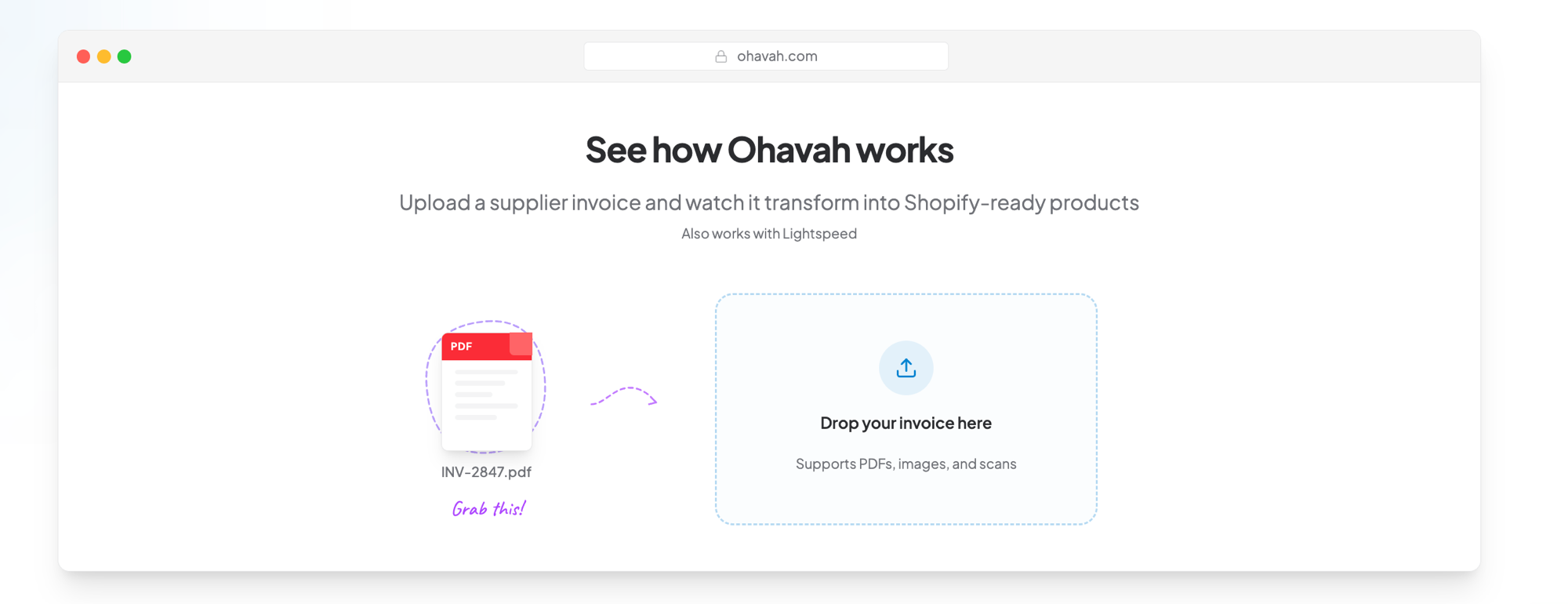
Add products straight from your supplier invoice
Skip the typing and skip the spreadsheet. Upload your PDF and Ohavah builds the Shopify CSV with every variant, SKU, and price already filled in.
CSV Export and Re-Import for Bigger Changes
Several of the sections above point to CSV for large or structural edits. Here's the full flow:
- Go to Products > Export, choose what to export (all, selected, or a filter), and pick the spreadsheet CSV option. Shopify emails you a download link.
- Open the file in your spreadsheet app and make your changes.
- Go to Products > Import, upload the file, and check "Overwrite existing products that have the same handle."
- Review and confirm.
Watch out for a few things:
- Don't change handles unless you want to create new products. A changed handle breaks the link to the existing product.
- Save as UTF-8 CSV. Excel's default encoding can corrupt special characters.
- Don't delete columns. Shopify expects every column present on re-import, even empty ones.
For recurring or very large import and export jobs, some merchants use a dedicated app. If you're weighing one, here's how we stack up in Ohavah vs Matrixify.
Tips for Efficient Bulk Editing
Filter first. Before selecting products, filter by vendor, product type, tag, or status so you're only editing what you need.
Work in batches. When you're updating 500 products via CSV, split them into files of 100 to 200. Errors are easier to catch and Shopify processes smaller files faster.
Keep a backup. Export your current products before any bulk change. If something goes wrong, re-import the original to roll back.
Test with a small batch. Run 5 to 10 products through your change first to confirm the format is right before touching the whole catalog.
Editing existing products is a few clicks. Building new ones from scratch, with the title, every size and color, SKUs, pricing, and tags, is where the hours go. Start a free trial of Ohavah and turn your next supplier invoice into a Shopify-ready CSV, with the variants, SKUs, and prices already filled in.
Related next steps
 LacyWillowmere BoutiqueCalled it “an absolute game changer” for launching her new website.