Shopify Product CSV Template (2026): Free Download
TL;DR
Shopify's product CSV has specific columns for product info, variants, images, and SEO, and getting the format wrong causes import failures. You can download the free sample template below, fill it in by hand, or skip the manual work entirely with Ohavah, which generates a correctly formatted Shopify CSV from your supplier invoices automatically.
Shopify's CSV import is powerful, but the format is particular. One wrong column name or a misplaced value and your import fails, often with unhelpful error messages. This guide breaks down every column so you know exactly what goes where, and gives you a working template to start from. If a CSV isn't the right fit for you, see the three ways to add products to Shopify.
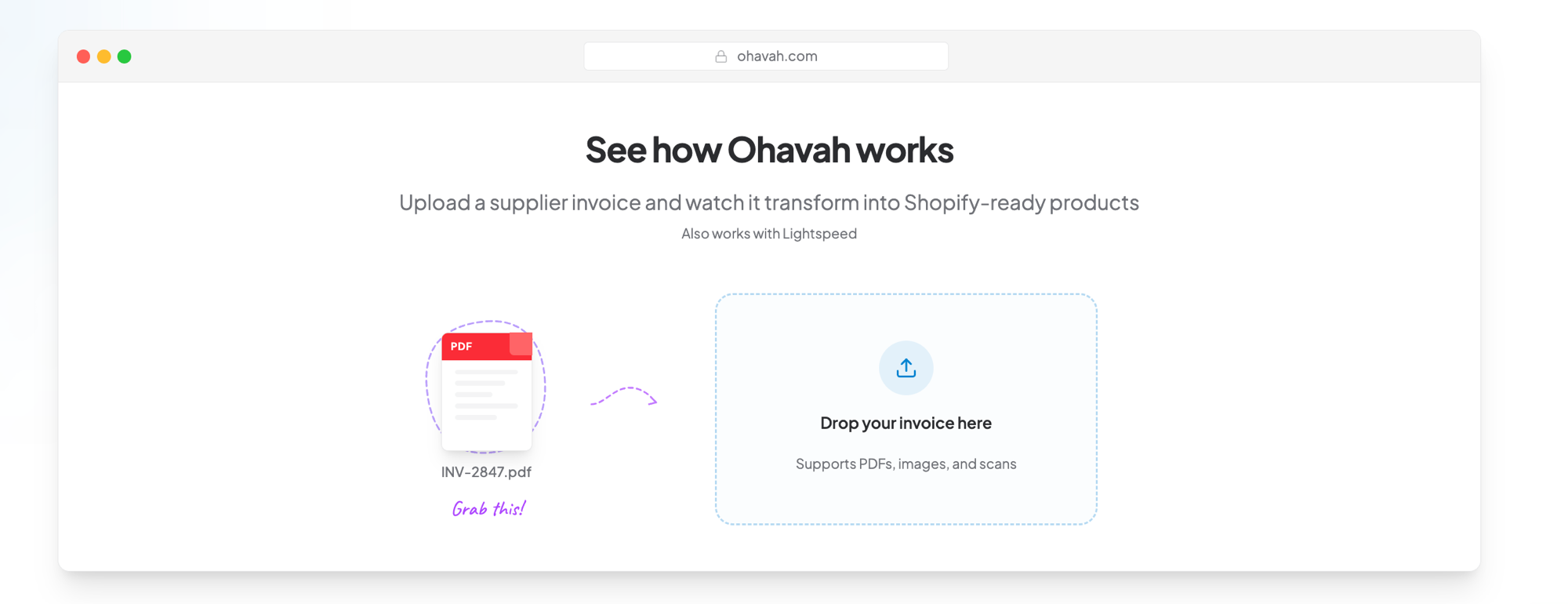
Turn a supplier invoice into this Shopify CSV
Upload your PDF and let Ohavah generate the products, variants, SKUs, prices, and images automatically.
Download a Shopify Product CSV Template
This is Shopify's official product template, the same file you get from the Download sample CSV link in the import window. It has the exact column headers Shopify expects, plus a couple of complete example products so you can see how a finished row looks before you edit it.
Free Shopify product CSV template
Shopify's official product template, with the exact columns, variant rows, and image columns it expects. Open it in Excel or Google Sheets and swap the example products for your own.
If your products come from supplier invoices, you don't have to fill any of this in by hand. Ohavah turns a supplier invoice into a ready-to-import CSV with the columns below already populated.
Required vs. Optional Columns
Shopify only strictly requires a few columns to create a product:
- Title - the product name, required on the first row for each product
- URL handle - the URL slug that groups all rows for one product; leave it blank and Shopify generates it from the title
Everything else is technically optional, but in practice you'll want to fill in most columns to create useful product listings.
Column-by-Column Reference
Shopify recently renamed several CSV columns. Handle is now URL handle, Body (HTML) is now Description, the variant columns dropped the "Variant" prefix (Variant Price is just Price), and Image Src is now Product image URL. The names below match the current template, so if an older guide shows different headers, that's why.
Product-Level Columns
These only need values on the first row for each product. Later variant rows leave them blank.
| Column | Description |
|---|---|
| Title | Product display name shown to customers. |
| URL handle | URL-friendly identifier (e.g., classic-tee) that groups every row belonging to one product. Lowercase, hyphens instead of spaces, unique per product. |
| Description | Product description. Supports HTML tags for formatting. |
| Vendor | Brand or supplier name. Shows up in Shopify filters. |
| Product category | Shopify's standardized product taxonomy (e.g., "Apparel & Accessories > Clothing > Shirts"). Used for tax and reporting. |
| Type | Your custom product type (e.g., "T-Shirts"). Used for filtering in admin and collections. |
| Tags | Comma-separated tags (e.g., summer, cotton, new-arrival). Used for automated collections and search. |
| Published on online store | TRUE or FALSE. Whether the product shows on your storefront. |
| Status | active, draft, or archived. Controls product state. |
Variant-Level Columns
These appear on every row, including the first row and each additional variant row. If you sell in multiple sizes and colors, this is where most of your rows come from. For a deeper walkthrough, see how to create product variants in Shopify.
| Column | Description |
|---|---|
| Option1 name | Name of the first option (e.g., "Size"). |
| Option1 value | Value for this variant (e.g., "Medium"). |
| Option2 name / Option2 value | Second option, such as "Color" / "Blue". Leave blank if unused. |
| Option3 name / Option3 value | Third option. Leave blank if unused. |
| SKU | Stock keeping unit, your internal identifier. |
| Barcode | UPC, ISBN, or other barcode. |
| Price | Selling price (e.g., 29.99). No currency symbol. |
| Compare-at price | Original/strikethrough price for sale items. Leave blank if not on sale. |
| Cost per item | What the item costs you. Optional, used for profit reporting. |
| Charge tax | TRUE or FALSE. |
| Inventory tracker | Usually shopify. Leave blank if you don't track inventory. |
| Inventory quantity | Starting stock quantity. Only used on the initial import. |
| Continue selling when out of stock | deny (stop selling at 0) or continue (allow overselling). |
| Weight value (grams) | Weight used for shipping calculations, paired with Weight unit for display. |
| Requires shipping | TRUE or FALSE. |
| Fulfillment service | Usually manual. |
Image Columns
| Column | Description |
|---|---|
| Product image URL | Full URL to the product image (must be publicly accessible). |
| Image position | Order of the image (1, 2, 3...). |
| Image alt text | Alt text for SEO and accessibility. |
| Variant image URL | Image tied to one variant, such as a color. Leave blank to use the main product images. |
SEO Columns
| Column | Description |
|---|---|
| SEO title | Custom title tag for the product page (max ~70 characters). |
| SEO description | Custom meta description (max ~320 characters). |
The template also carries optional columns most boutiques can leave blank: Gift card, the unit-price measure fields, a Color metafield, and a block of Google Shopping columns for Google's shopping feed. Fill those in only if you specifically need them.
Row Structure Rules
This is where most mistakes happen:
- First row for a product: fill in all product-level columns plus the first variant's details
- Additional variant rows: same URL handle, leave product-level columns blank, fill in variant columns only
- Image-only rows: same URL handle, only fill in Product image URL / Image position / Image alt text - used to add extra images without creating variants
Example with two sizes and two images:
Title,URL handle,Option1 name,Option1 value,Price,Product image URL
Classic Tee,classic-tee,Size,Small,29.99,https://example.com/tee-front.jpg
,classic-tee,Size,Medium,29.99,
,classic-tee,,,,https://example.com/tee-back.jpg
How to Import Your CSV Into Shopify (Step by Step)
Once your file matches the format above, the import itself takes a minute or two.
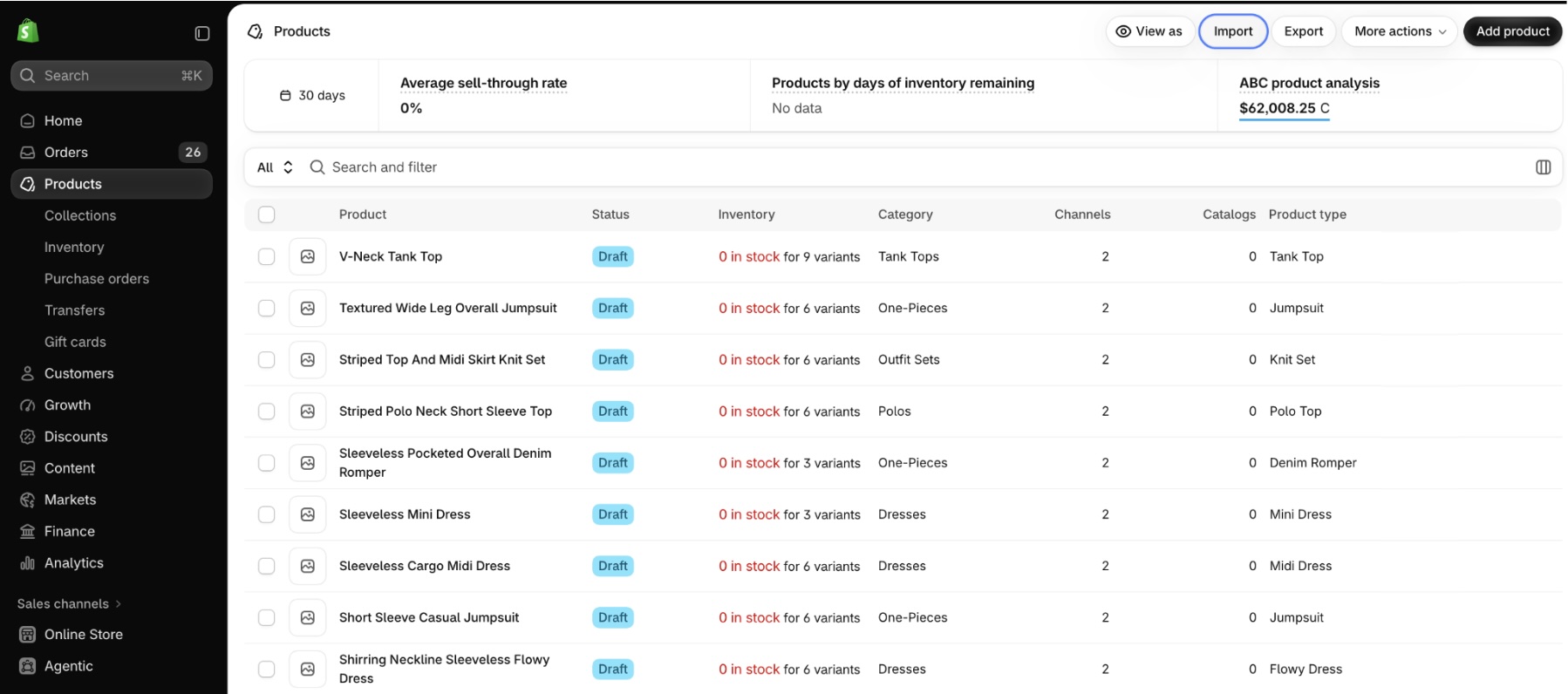
- Open the import screen. From your Shopify admin, go to Products in the left menu, then click Import in the top right.
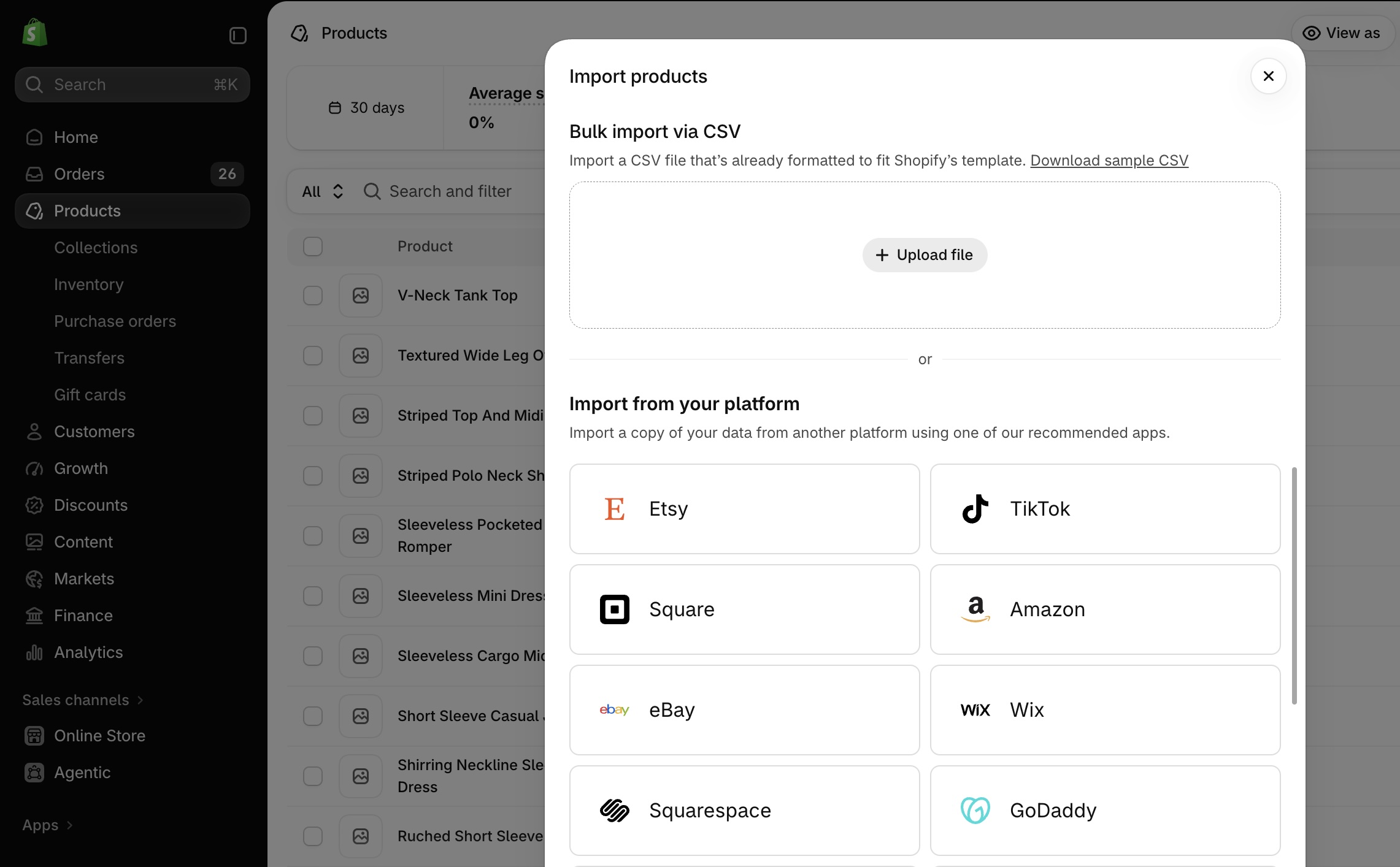
- Choose your file. In the Import products window, drag your CSV into the upload box or click Upload file to pick it from your computer. The Download sample CSV link in this window gives you the official template from above.
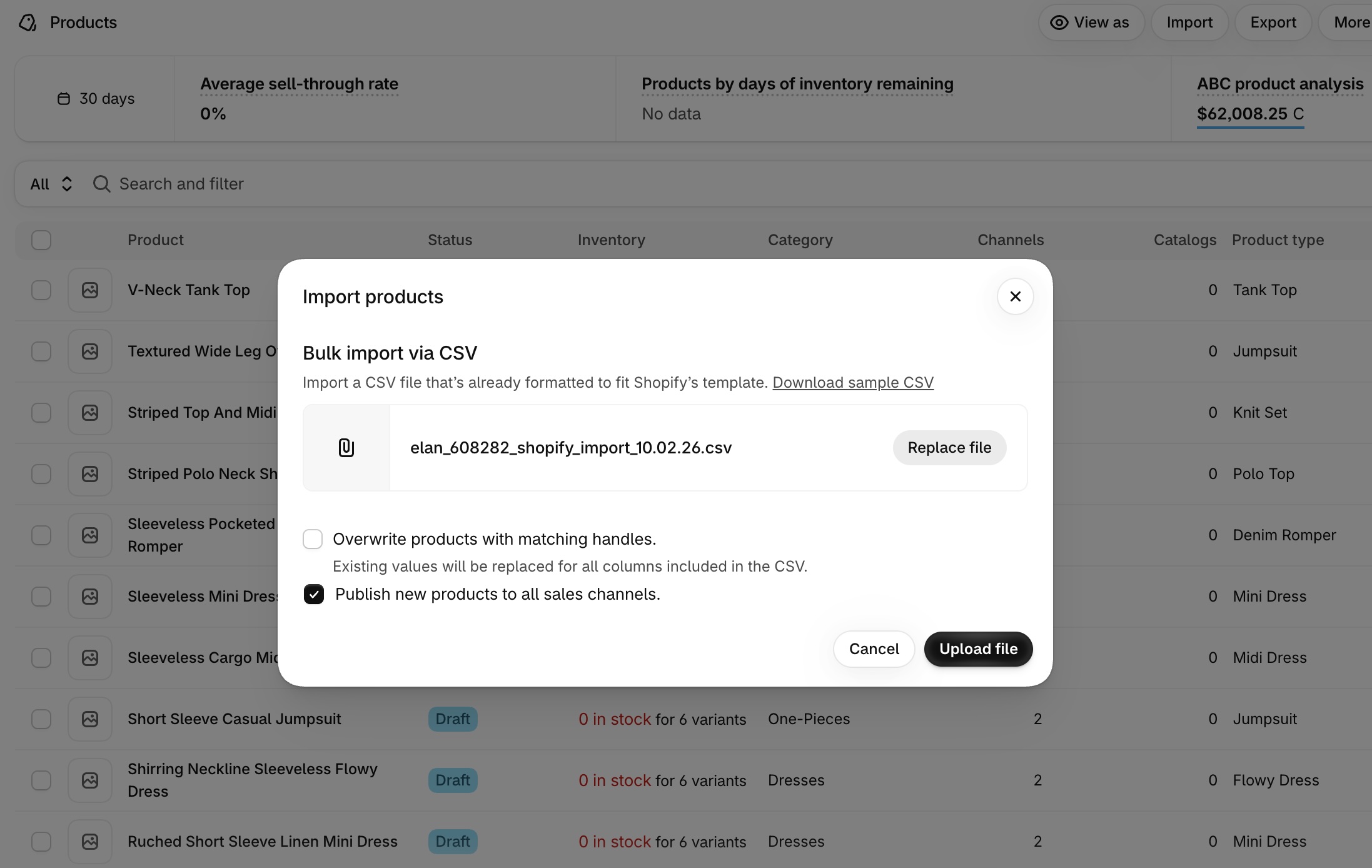
- Set the options and upload. Once the file is attached, leave Overwrite products with matching handles unchecked when you're adding brand-new products, so nothing you already have gets replaced by accident; check it only when you mean to update existing products. Then click Upload file.
- Review the preview. Shopify reads the file and shows a preview before anything is saved, including how many products, SKUs, and images it found. If it says 0 images when your products should have photos, the Product image URL values aren't being read, so fix that now rather than after the import. Check the first product too, confirming the title, price, and variants landed where you expect, then click Import products.
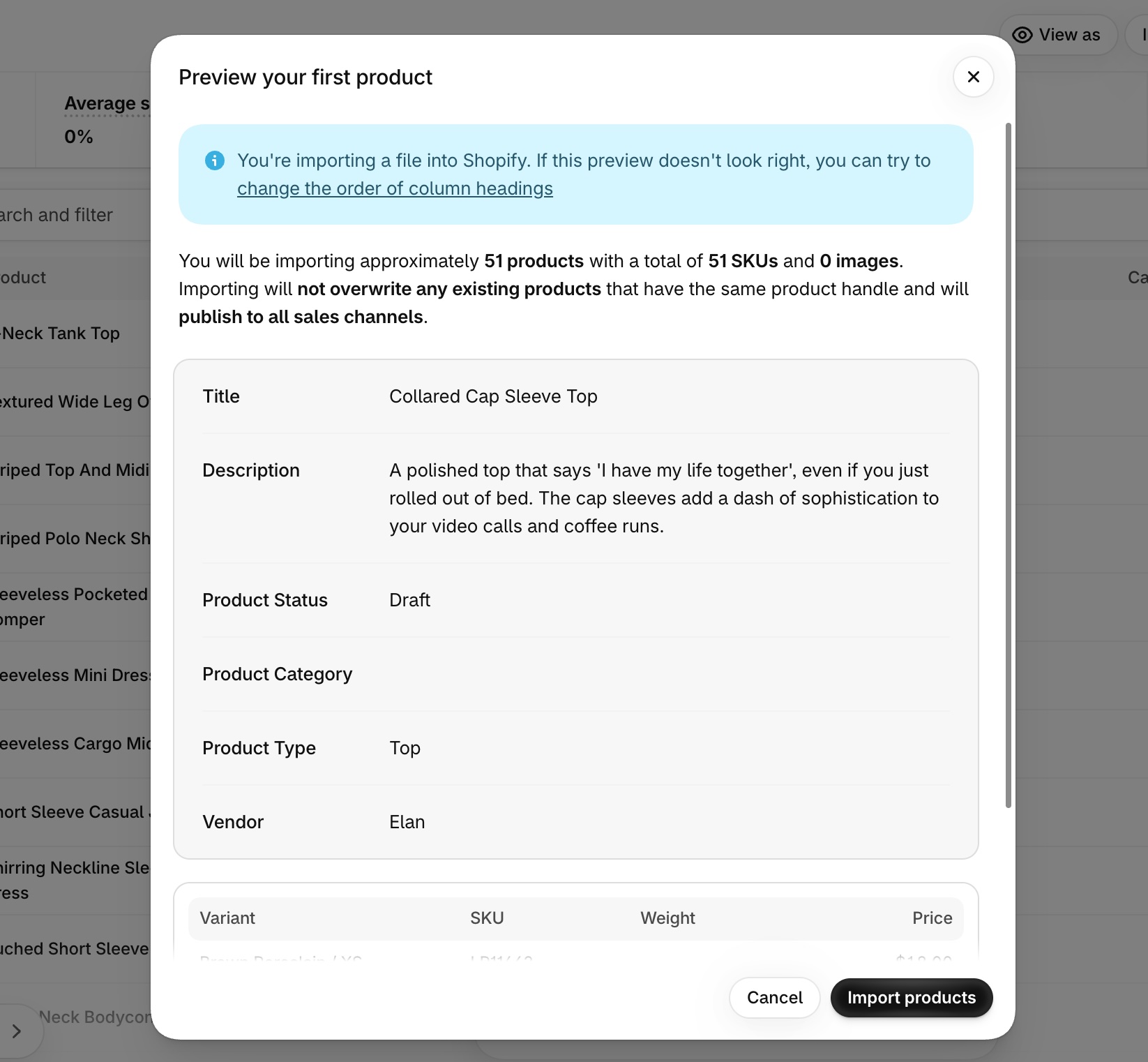
- Let it finish. Shopify imports in the background and tells you when it's done. You can close the dialog and keep working; larger catalogs take a few minutes.
Common import mistakes
A file that passes Shopify's format check can still import in ways you didn't expect. Two catch people out most often:
- Images don't load. The Product image URL column has to be a full, publicly reachable URL. If the image sits behind a login, on your desktop, or on a site that blocks hotlinking, Shopify can't fetch it and the product imports without a photo.
- Variants don't group. When sizes or colors of the same product show up as separate products instead of one product with options, the URL handle values don't match. Every variant row for a product needs the exact same URL handle, down to the spelling and hyphens.
Before a big import, it's worth copying your file down to just two or three products and importing that first. If those come through clean, the full file almost always will, and you've only risked a handful of rows instead of your whole catalog.
If you'd rather skip the formatting altogether, Ohavah builds the CSV from your supplier invoice with handles, variants, and image links already set up the way Shopify expects, so there's nothing to fix before you import.
Common Errors and Fixes
"Invalid CSV file" on upload - Your file might not be UTF-8 encoded. In Excel, use "Save As > CSV UTF-8". In Google Sheets, download as CSV (it's UTF-8 by default).
Products importing without variants - Check that your Option1 name and Option1 value columns are filled in. If they're blank, Shopify creates a "Default Title" variant.
Duplicate products instead of updates - When reimporting, check "Overwrite products with matching handles". If unchecked, Shopify creates new products even when the URL handle already exists.
Prices showing wrong - Don't include currency symbols or thousand separators. Use 29.99, not $29.99 or 1,299.99.
Skip the spreadsheet entirely
Ohavah builds the finished, correctly formatted Shopify CSV from your supplier invoice in minutes.
Related next steps
 LacyWillowmere BoutiqueCalled it “an absolute game changer” for launching her new website.