How to Add Elan Wholesale Products to Shopify (Step by Step)
By Pedro Kroeff ·
TL;DR
If you buy Elan wholesale, getting an order into Shopify means creating every style with its colors and full size run, setting prices, finding the photos by style number, and importing it all with a CSV. Done by hand, one order can take hours. Ohavah reads the Elan invoice and gives you Shopify products with variants and prices, plus the CSV to import them. For photos, you search by style number in Ohavah's Photo Finder and download them in bulk.
Before an Elan order can sell online, every line on the invoice has to become a Shopify product with the right colors, sizes, prices, and photos, and with as many colors and sizes as Elan ships per style, that list gets long fast.
This guide walks through the manual way first, so you can see exactly where the time goes, and then shows how to skip the typing.
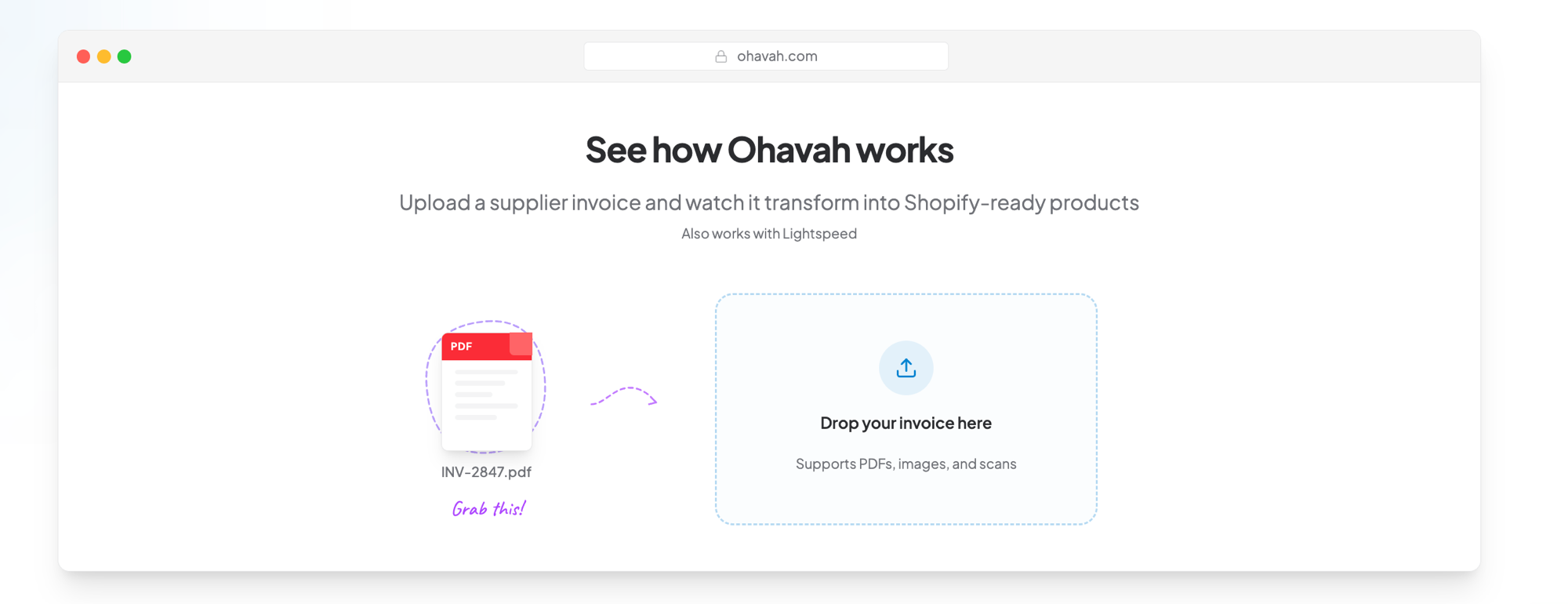
Turn your Elan invoice into Shopify products
Upload the Elan PDF and Ohavah builds every style with its colors, sizes, SKUs, and retail prices, plus the Shopify CSV to import them.
Why an Elan order takes so long to list
An Elan invoice packs a lot onto each line. A style usually comes in several colors, and each color ships in a full size run, so one line can be a single style in three colors across XS to XL. In Shopify that's fifteen variants, and each one needs its own SKU, price, and stock count. An order of twenty styles turns into a few hundred variant rows.
Each row is simple to fill in, but there are hundreds of them, and it's easy to put a size count under the wrong color and only find out when a customer orders a medium you don't have.
The manual way, step by step
1. Read the invoice line by line
Start with the PDF. For each line, write down the style number, the style name, each color, the size breakdown for that color, and the wholesale cost. Decide now whether you'll keep Elan's color names or rename them for shoppers, because changing them after import means editing every variant again (more on that in making vendor color names make sense).
2. Create each style with its colors and sizes
Every Elan style becomes one Shopify product with Color and Size as options, and each color and size combination becomes its own variant. You can build these in the Shopify admin, where Shopify creates the variants once you add the options, but for a full order it's faster to lay them out as rows in the CSV you'll import in step 5, one row per variant. Either way, give every variant a SKU you can trace back to the invoice, usually the style number with a color and size code on the end. If you haven't set up options before, how to create product variants in Shopify covers it.
3. Add prices
Turn the wholesale cost into a retail price. Most stores apply a fixed markup and then round to a price ending they like, such as .00 or .99. Use the same rule on every style so two similar sweaters don't end up at odd prices next to each other on the site.
4. Find the photos by style number
Elan has shared its catalog images through Flickr albums sorted by season, so finding a style means scrolling album by album and matching photo titles to the style numbers on your invoice. Save the shots you want for each style and color, name the files so you know which product they go with, and keep one folder per order.
5. Import everything with a CSV
With more than a few styles, entering each product in the Shopify admin takes too long, so most stores put everything from steps 2 and 3 into a CSV instead. That's one row per variant, with the product details on the first row of each handle and the price and SKU on every row, plus the stock count if you sell from a single location. Upload it under Products > Import. Photos either go in the Image Src column as public links or get dragged onto each product after the import. Our Shopify CSV format guide explains every column and the small mistakes that break an import.
Stock needs its own step in two cases. If the order includes a style that's already in your store, Shopify skips a row whose handle matches an existing product unless you tick Overwrite products with matching handles, which also replaces any edits you've made to that product since. For styles you already carry, leave them out of the product CSV and add the new quantities with an inventory CSV under Products > Inventory > Import. That file only updates variants that already exist, so if a style comes back in a new color or size, add the new variant to the product in Shopify first. The same inventory import is how you set stock if your store has more than one location, because the product CSV won't fill in counts per location and your tracked variants can show as out of stock.
Add it up and a twenty-style Elan order takes several hours this way, and most of that time goes to retyping what's already printed on the invoice.
Turn the Elan wholesale invoice into Shopify products
Steps 1, 2, 3, and 5 are mostly copying information from the invoice into another format, and Ohavah does that copying for you:
- Upload the Elan invoice as a PDF.
- Ohavah reads every line and builds the products, with each style's colors and sizes as Shopify variants, SKUs in your format, and retail prices with your markup and rounding applied.
- Review and download the CSV. Check the products, download the Shopify-ready file, and import it under Products > Import.
You set your markup, rounding, and SKU format once, and every Elan order after that comes out the same way. Invoices from your other brands go through the same upload. For a closer look at how it handles Elan specifically, see Ohavah for Elan retailers.
Find Elan photos by style number in Photo Finder
Photos are a separate step, and Ohavah doesn't attach them to your products for you. You find them with Photo Finder. Type in the Elan style numbers from your invoice (you can enter several at once), and Photo Finder shows the catalog images for each style. Select the ones you want, download them together, and add them to your products in Shopify.
If the catalog shots don't match the look of your store, you can edit them in bulk in Ohavah's photo studio, for example swapping the background on a whole batch so your Elan collection looks consistent next to your other brands. Finding product images for your boutique covers more ways to source photos.
By hand vs. with Ohavah
| Step | By hand | With Ohavah |
|---|---|---|
| Read the invoice | You go line by line | Ohavah reads it |
| Styles, colors, and sizes | You create every variant | Built from the invoice |
| Prices | You calculate each markup | Your markup and rounding applied |
| Photos | Scroll through albums matching style numbers | Search by style number in Photo Finder and download in bulk |
| Import | You build the CSV | You download the finished CSV |
FAQ
How do I add Elan wholesale products to Shopify? Create each Elan style as a Shopify product with Color and Size options, give every variant a SKU and retail price, add the photos, and import everything with a CSV under Products > Import. To skip the typing, upload the Elan invoice to Ohavah and it builds the products and the CSV for you.
Does Ohavah add the photos automatically? No. You search for the photos by style number in Photo Finder, select the ones you want, and download them in bulk. You can also edit them in bulk before you add them to your products in Shopify.
Can I use my own markup and SKU format for Elan? Yes. You set your markup, rounding, and SKU format once, and Ohavah applies them to every Elan invoice you upload.
Try it on your next Elan order
If your next Elan shipment means another evening of typing, start a 7-day free trial of Ohavah, upload the invoice, and import the CSV it builds. To see how it works with Elan from invoice to photos, visit the Ohavah for Elan page.
Related next steps
 LacyWillowmere BoutiqueCalled it “an absolute game changer” for launching her new website.